Anyone using a Windows PC long enough notices a gradual slowdown and a shrinking C drive. Over months of normal operation, your operating system quietly accumulates gigabytes of temporary files, browser caches, application installation leftovers, old Windows update files, system error logs, and digital clutter. When storage gets critically tight, your computer struggles with virtual memory swapping, application loading times increase noticeably, and background tasks start dragging. Microsoft specifically identifies low disk space as a primary factor that can degrade overall system performance, making routine storage maintenance a vital part of owning a PC.
Finding a reliable utility to clear out this digital debris does not require spending money on expensive third-party optimization suites loaded with unnecessary features. Several free utilities exist specifically to reclaim lost storage safely. However, these tools are not all built the same way. Some are native utilities built right into the Windows operating system, while others are specialized third-party applications. The practical difference lies in what specific types of files they clean, how much granular control they offer over your data, and how safely they handle critical system files without breaking your installation.
1. Windows Disk Cleanup
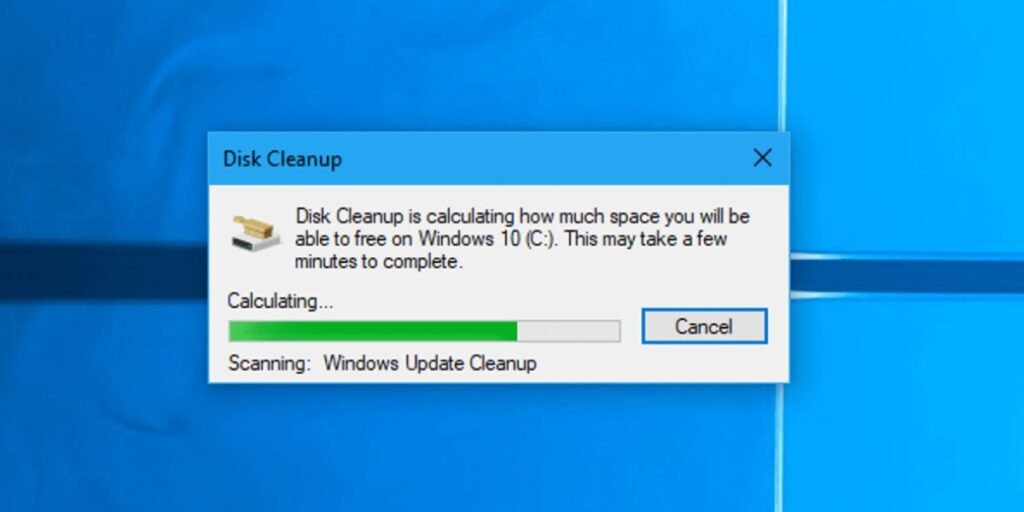
When you want to start clearing out storage without downloading anything from the internet, Microsoft’s native Disk Cleanup utility is the safest and most logical first step. Because it comes pre-installed on Windows 10 and Windows 11, you never have to worry about bundled adware or untrusted software installers. You simply click your Windows taskbar, type Disk Cleanup, and launch the application directly.
- Developer: Microsoft Corporation
- Pricing: 100% Free (Built into Windows)
- Compatibility: Windows 10 and Windows 11
- File Size: System Native (No external download required)
Microsoft designs this tool specifically to target safe-to-remove operating system files and temporary user data. When the main scanning window opens, it analyzes your primary drive and categorizes recoverable space into distinct groups. You can safely check boxes for Temporary files, Thumbnails, Downloaded program files, Temporary Internet files, and various Windows-related cleanup files without risking your personal documents.
For users dealing with severe storage crunches, clicking the Clean up system files button unlocks a deeper layer of scanning. This advanced scan surfaces large files that normal user scans miss, including Previous Windows installation files left behind after major operating system upgrades. Deleting these previous installation files is an effective way to recover 15 GB to 30 GB of storage instantly, though it comes with one important practical catch. Once you wipe those previous installation files, you permanently lose the ability to easily roll back your operating system to your last Windows version through the standard recovery menu.
You can review official instructions and documentation directly on the Microsoft Support Disk Cleanup Guide.
2. Microsoft PC Manager
If you find navigating traditional Windows settings tedious and want a more modern graphical interface for your daily maintenance, Microsoft PC Manager serves as an excellent second choice. Developed directly by Microsoft and officially available for Windows 10 version 19042 and later alongside Windows 11, this free utility brings multiple system health and storage management features into a single, clean dashboard.
- Developer: Microsoft Corporation
- Pricing: Free
- Compatibility: Windows 10 (version 19042+) and Windows 11
- File Size: Approx. 188 MB (Varies by build update)
Instead of hunting through separate menus to find temporary files or manage background apps, PC Manager handles these tasks through dedicated optimization tabs. Its Deep Cleanup utility performs a comprehensive scan across your local drives, searching for forgotten Temporary system files, heavy Browser cache, lingering Application cache, and scattered Unnecessary files.
Beyond basic junk removal, the software includes a practical Storage management section that scans your drive for Large files exceeding specific size thresholds. This storage analysis feature prevents you from blindly deleting unknown data by showing you exactly what files occupy the most space on your disk. It also features built-in App management and Startup management tools, making it a well-rounded utility for beginners and everyday users who want straightforward PC maintenance backed by Microsoft’s official software development standards.
You can download the application safely through the official Microsoft PC Manager Store Page.
3. BleachBit
When you need a powerful, open-source utility that gives you absolute granular control over what gets deleted without locking you into rigid one-click corporate workflows, BleachBit stands apart from typical optimization programs. Developed specifically as a transparent alternative to commercial cleaners, it lets advanced users inspect every action the software performs.
- Developer: Andrew Ziem (Open Source Community)
- Pricing: Free and Open Source (No ads or telemetry)
- Compatibility: Windows 10 and Windows 11 (Legacy versions available for older OS builds)
- File Size: Approx. 16.8 MB (Lightweight installer)
BleachBit targets system logs, browser histories, deep caches, and privacy traces across hundreds of popular applications like Firefox, Google Chrome, Edge, and VLC. One of its greatest practical advantages is flexibility: the official site provides a standard installer alongside a portable ZIP version that runs directly from a USB flash drive without modifying system registry entries.
Unlike software that deletes files blindly, BleachBit forces you to check specific category boxes and features an explicit preview mode that displays every file targeted for removal alongside exact disk space calculations before you commit. This transparency makes it ideal for experienced users who want to purge digital clutter safely.
You can download the application directly from the Official BleachBit Windows Download Page.
4. Wise Disk Cleaner
For users who want a dedicated, lightweight utility that focuses strictly on reclaiming drive space without cluttering their system with heavy background suites, Wise Disk Cleaner is a stellar option. Created by WiseCleaner, this standalone application handles deep junk extraction while keeping resource usage exceptionally low.
- Developer: WiseCleaner Technology Co., Ltd.
- Pricing: Free (Optional paid upgrade available for advanced features)
- Compatibility: Windows 7 through Windows 11 (32-bit and 64-bit editions)
- File Size: Approx. 11.8 MB
The software performs deep scans to unearth forgotten temporary files, old error logs, browser caches, backup files, and leftover downloaded Windows update files. Beyond standard junk removal, it features a built-in AutoClean scheduler that automates maintenance daily, weekly, or during system idle periods.
It also tailors drive optimization to your hardware architecture by running a traditional defragmentation routine for mechanical hard drives or executing native TRIM commands for solid-state drives to preserve long-term storage health.
You can download the software safely through the Wise Disk Cleaner Official Website.
5. Glary Disk Cleaner
When you want a straightforward, dedicated cleaning utility that avoids complicated menus and focuses entirely on a quick scan-and-review workflow, Glary Disk Cleaner is an ideal tool. Built by the development team behind Glary Utilities, this standalone application provides an approachable interface for everyday users who want to purge junk data without managing a massive optimization suite.
- Developer: Glarysoft Ltd.
- Pricing: Free
- Compatibility: Windows 7 through Windows 11 (32-bit and 64-bit editions)
- File Size: Approx. 12.85 MB
The software scans your storage drives for accumulated Temporary files, Temporary Internet files, and stubborn leftovers from incomplete uninstallations. One of its most valuable features for cautious users is the built-in Ignore List. This function allows you to explicitly exclude specific files or directories that you never want the cleaner to touch, preventing accidental data loss.
Before executing any deletion, Glary Disk Cleaner presents a clear breakdown detailing each file name, physical location, and exact size. This makes it easy to review scan results manually rather than relying on a blind automated sweep.
You can download the application safely through the Glarysoft Official Download Center.
6. PrivaZer
If your primary concern goes beyond recovering gigabytes of storage and extends deeply into data privacy, tracking protection, and erasing digital footprints, PrivaZer provides unmatched depth. Developed by Goversoft, this privacy-focused utility is engineered to scour your storage media for residual data that standard cleaners frequently miss.
- Developer: Goversoft
- Pricing: Free Freeware
- Compatibility: Windows XP through Windows 11 (Supports 32-bit, 64-bit, and ARM64 architectures)
- File Size: Approx. 27.5 MB
PrivaZer analyzes both traditional hard disk drives and solid-state drives across NTFS, FAT, and exFAT file systems. It goes deep into your system sectors to purge browser traces, index.dat files, cookies, thumbnail caches, and deleted-file remnants left lingering in free space.
Its standout capability is its secure overwrite mechanism, which repeatedly zeroes out deleted file clusters so third-party data recovery software cannot reconstruct your historical activity. The official site offers both a traditional installer and a convenient portable version that requires no setup.
You can download the application directly from the PrivaZer Official Download Page.
If you’re interested in using AI tools to manage data and automate everyday tasks, these related articles cover useful options for data analysis and workflow automation.
- 10 Best AI Data Analysis Tools in 2026
- 10 Best AI Workflow Automation Tools in 2026
- 10 Best AI Workflow Automation Tools to Cut Repetitive Work (2026 Picks)
7. CCleaner Free
As one of the most recognizable names in Windows system optimization, CCleaner Free remains a familiar staple for users seeking an established third-party maintenance utility. Maintained by Piriform, the free tier delivers a balanced mix of basic junk removal and system inspection tools.
- Developer: Piriform Software Ltd. (Avast / Gen Digital)
- Pricing: Free Tier Available (Optional Professional upgrades offered)
- Compatibility: Windows 10 and Windows 11
- File Size: Approx. 45 MB to 55 MB (Varies by installer build)
The free version centers around its signature Custom Clean and Health Check features. It scans your machine to wipe accumulated browser history, cached web images, tracking cookies, and standard temporary operating system files. It also includes a built-in software uninstaller and a startup manager to help control which applications launch alongside Windows.
While the application promotes its paid professional tiers within the interface, the core free features function reliably for everyday cleanups. Its friendly graphical layout makes it a comfortable choice for users who prefer an intuitive utility over highly technical open-source software.
You can download the software safely from the Official CCleaner Free Download Page.