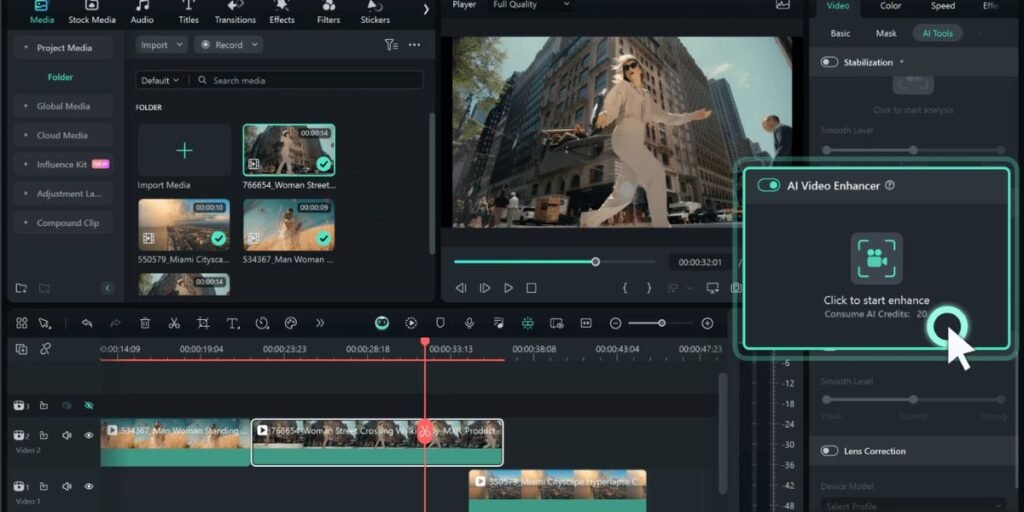
Video enhancement is not the same job as resizing a frame. Anyone who has dragged a corner handle on a clip in a basic editor knows what happens next: the footage gets bigger, but it also gets softer, blockier, and noticeably worse. That is because ordinary upscaling just stretches pixels that already exist. It has no idea what a sharp jawline or a crisp brick wall is actually supposed to look like, so it just smears what is already there across more screen space.
AI-driven enhancement works on a completely different principle. Neural networks trained on millions of frame pairs learn what detail should exist between the pixels you already have. They study motion across several consecutive frames, not just one, which lets them rebuild texture, tame grain, and in some cases generate visual information that was never in the original file at all. That is a meaningful technical leap, and it is why editors who once dismissed AI upscaling as marketing fluff are now building it into daily workflows.
I have spent years testing restoration software on everything from noisy iPhone footage to disintegrating VHS transfers, and the honest lesson is this: there is no single best tool. There is only the tool that matches the specific problem sitting in your footage. Blurry focus, blocky compression from a decade-old Facebook upload, choppy 24fps interview footage that needs smoothing, or facial detail lost in an archival family video, each of these calls for a different processing approach, and the software built for one job often struggles with another.
What Makes a Good AI Video Enhancer?
A genuinely useful enhancer solves the problem sitting in front of you without leaving behind the telltale wax-figure smoothness or plastic skin that gives away over-processed footage. The tools worth paying for tend to use purpose-built models rather than a single generic filter stretched across every use case, and that distinction shows up the moment you push a difficult clip through them.
Detail restoration and upscaling is the baseline expectation. Pushing a source clip from 480p or 720p up to 1080p, 4K, or even 8K without the image collapsing into mush requires the software to reconstruct fine textures, clean edge lines, and believable contrast rather than just interpolating between existing pixels.
Artifact and noise removal matters just as much, arguably more, because most real-world footage arrives compressed. The software has to strip out blocky compression artifacts and sensor noise from low-bitrate uploads without also erasing the natural grain in skin, fabric, or foliage. Overcorrect here and you get the AI smoothed look that instantly signals cheap processing to any trained eye.
Frame rate interpolation and motion smoothing let editors manufacture intermediate frames that were never captured, which is how you turn a jittery 24fps pan into something closer to buttery 60fps, or stretch a normal clip into convincing slow motion.
Hardware efficiency decides whether any of this is usable on a real production schedule. A tool that produces gorgeous results but takes four hours to render two minutes of 4K footage is not a production tool, it is a demo. GPU acceleration, whether on a local RTX card, Apple Silicon, or a cloud render farm, is what separates software you can actually build a deadline around from software you experiment with on weekends.
AI Video Enhancer Tools Compared
| Tool | Best for | Desktop/Web | Upscaling | Denoising | Restoration | Free Option | Starting Price |
| Topaz Video AI | Professional restoration and deep model control | Desktop (macOS/Windows) | Yes (up to 16K) | Advanced | Excellent | Free trial with watermark | $59/mo or $299/yr |
| Adobe Premiere Pro | Native timeline editing and fast clip cleanup | Desktop (macOS/Windows) | Native / AI effects | Built-in | Moderate | 7-day trial | $22.99/mo |
| DaVinci Resolve | Color grading integration and studio finishing | Desktop (macOS/Windows/Linux) | Super Scale / AI | Advanced | High-end | Free version available | $295 (Studio) |
| AVCLabs Video Enhancer AI | Targeted upscaling and face refinement | Desktop (macOS/Windows) | Yes (up to 8K) | Dedicated | Good | Free trial | $39.95/mo |
| HitPaw VikPea | Fast enhancement and automated face repair | Desktop (macOS/Windows) | Yes (up to 8K) | One-click | Good | Free trial | $43.19/mo |
| VideoProc Converter AI | Low-spec hardware and utility conversion | Desktop (macOS/Windows) | Yes (up to 4K) | Solid | Moderate | Free trial | $25.95/yr |
| Aiarty Video Enhancer | Bulk upscaling and sharp detail generation | Desktop (macOS/Windows) | Yes (up to 4K/8K) | Clean | Good | Free trial | $79/yr |
| CapCut | Quick social media polish and mobile content | Web / Mobile / Desktop | Quick bump | Basic | Basic | Free tier available | $7.99/mo (Pro) |
| UniFab Video Enhancer AI | Comprehensive media conversion and HDR tuning | Desktop (Windows) | Yes (up to 4K) | Solid | Moderate | Free trial | $49.99/yr |
| TensorPix | Cloud processing without local GPU demands | Web browser | Yes (up to 4K) | Cloud-based | Good | Free trial credits | $5.50/mo |
1. Topaz Video AI
Topaz Video AI is still the reference point most professional colorists and restoration specialists reach for first, and for good reason. The software relies on dedicated neural network models tuned for specific visual problems rather than one catch-all filter, covering interlaced footage, heavy compression, motion blur, and severe low-resolution scaling. Its Proteus and Iris models hand editors precise slider-level control over sharpening, anti-aliasing, and facial restoration, which is exactly the kind of granularity a colorist working on a difficult archival reel actually needs.
The 2026 lineup has expanded meaningfully. Alongside the older Proteus and Iris engines, Topaz has rolled out Starlight for generative restoration of severely degraded footage, Astra for cleaning up artifacts specific to AI-generated video, and Aion for smoother frame interpolation at 4K and above. The software also includes specialized deinterlacing and de-haloing models, plus interpolation up to 16x for building fluid slow-motion sequences out of standard frame-rate source material. Everything renders locally on your own GPU, which matters if client confidentiality is part of your job description.
Running Topaz Video AI comfortably requires real hardware. You will want a modern multi-core processor paired with an NVIDIA RTX card or Apple Silicon chip if you want 4K exports to finish in a reasonable window rather than overnight. The bigger change worth knowing about is licensing: Topaz Labs discontinued perpetual licenses in October 2025, moving entirely to subscriptions. The Personal plan sits at $299 per year, and existing perpetual license holders keep access to whatever version they last purchased, but new AI models require an active subscription to unlock. And as mentioned above, Adobe’s planned acquisition of Topaz Labs, announced for the second half of 2026, is a development worth watching if you are weighing a long-term commitment to the platform.
2. Adobe Premiere Pro
Premiere Pro takes the opposite philosophy from a dedicated restoration app: it wants enhancement to happen without you ever leaving your timeline. Instead of exporting a clip to a separate tool, cleaning it up, and re-importing it, Premiere folds tools like Enhance Speech, intelligent auto-reframe, and native noise management directly into its effects panel, right alongside your cuts and transitions.
That integration is the whole point. There is zero disruption to existing multi-track edits, and heavier repair jobs can be handed off seamlessly to After Effects without breaking your project structure. The native AI speech enhancement does a genuinely good job cleaning up room tone and mic noise, and GPU acceleration keeps playback previews responsive even on longer timelines.
Where Premiere falls short is depth. It handles audio cleanup, moderate sharpening, and color correction well, but it does not offer the kind of deep generative upscaling models you find in Topaz or DaVinci’s Super Scale. It is the right tool when you need a fast, integrated fix without breaking your editing flow, not when you are trying to rescue a genuinely damaged source file. Pricing runs from around $19.99 to $34.49 per month depending on billing commitment, with most individual subscribers landing near $22.99 per month on an annual plan, following a 7-day free trial.
3. DaVinci Resolve
DaVinci Resolve is the rare tool on this list that treats enhancement as one part of a much larger professional pipeline rather than a standalone task. Studio users get the DaVinci Neural Engine, which includes Super Scale upscaling, advanced spatial and temporal noise reduction, face refinement filters, and optical flow-based frame interpolation, all sitting inside the same environment as color grading and Fairlight audio finishing.
Super Scale can push resolution up to 4x the original while keeping edges genuinely sharp rather than smeared, and the temporal and spatial denoising is tuned specifically for cinema camera profiles, which is why colorists trust it on real production footage rather than just casual uploads. Automated facial tracking also allows for localized skin smoothing and eye polishing without affecting the rest of the frame, all inside a professional node-based grading workflow.
The real advantage here is that enhancement happens alongside precision color work rather than through a lossy intermediate export. You are not compressing your master footage twice just to move it between apps. DaVinci Resolve Studio remains a one-time $295 purchase, a price Blackmagic Design has held since it acquired the software back in 2009, with no subscription and free access to future major updates. For editors weighing long-term cost against Topaz’s now-recurring subscription, that single payment is worth factoring in seriously.
4. AVCLabs Video Enhancer AI
AVCLabs takes a more automated route than Topaz, focused on getting good results without forcing users through a maze of manual sliders. It converts standard-definition footage up to 4K or 8K using multi-frame optical flow analysis, which helps keep reconstructions stable across temporal frames rather than flickering between shots.
Its dedicated face recognition model does a solid job sharpening blurred faces in wide or distant shots, which is a common complaint with archival home footage where the subject is rarely front and center. The software also includes automated black-and-white colorization, useful for anyone digitizing family archives rather than commercial productions, alongside a clean, preset-driven interface built for people who want fast results rather than deep customization.
That accessibility is really the appeal. Creators who want standalone restoration power without climbing a steep learning curve tend to gravitate here. Pricing starts at $39.95 per month, with annual and perpetual license options for people who plan to use it long term.
5. HitPaw VikPea
HitPaw VikPea leans hard into speed and accessibility over granular control, with specialized modules for general repair, facial enhancement, animation colorization, and low-light correction. Each of these ships as a distinct one-click AI model rather than a single generic filter, which matters because a model tuned for human faces behaves very differently from one tuned for underexposed footage.
The software supports automated batch processing, a genuine time-saver for content creators working through a queue of multiple files rather than a single hero clip, and it exports up to 8K with minimal manual configuration. A split-screen before-and-after preview also makes it easy to judge results at a glance before committing to a full render.
VikPea is not trying to be Topaz. It prioritizes speed over deep parameter access, which makes it a strong fit for vloggers, talking-head interviews, and social clips where creators want clear improvement fast rather than hours of slider tweaking. Monthly access runs $43.19, with perpetual license options also on offer.
6. VideoProc Converter AI
VideoProc Converter AI is built for people who need practical, everyday video improvement bundled with genuinely useful utility features like conversion, compression, and screen recording rather than a single-purpose restoration suite. Its AI engine focuses on lightweight super-resolution, frame interpolation, and shake stabilization rather than trying to compete with high-end generative restoration.
The software uses efficient hardware acceleration designed to run comfortably on older or mid-range GPUs, which is worth noting given how demanding tools like Topaz and DaVinci Studio can be on a machine. It combines upscaling, stabilization, and frame rate boosting into single-pass operations, and its built-in trimming, format conversion, and compression tools keep resource use low even during batch jobs.
VideoProc will not out-restore Topaz on a severely damaged clip, and it is not trying to. Instead it offers a practical, budget-friendly path for editors on mid-range computers where heavier applications stall or crash. Subscriptions start at $25.95 per year, following a free trial, which makes it one of the more affordable annual options in this comparison.
7. Aiarty Video Enhancer
Aiarty positions itself around clean detail generation rather than aggressive sharpening, using deep learning models tuned for high-bitrate output. The design goal is eliminating low-resolution blur and pixelation while keeping physical textures like skin, fabric, and foliage looking authentic rather than artificially smoothed or painterly.
Its models handle 2x, 4x, and full 8K upscaling passes cleanly, and the render pipeline is optimized for batch output on dedicated GPUs, so processing a folder of clips does not become an overnight ordeal. Separate models exist for real-world camera footage versus animated content, which is a thoughtful distinction, since anime and live-action footage genuinely need different restoration approaches.
The interface stays streamlined, which appeals to users who find deep slider systems from tools like Topaz overwhelming but still expect crisp, professional-grade output. Licensing runs $79 per year, or $165 for a lifetime purchase.
8. CapCut
CapCut is built for the pace social media actually demands, with AI image and video sharpening baked directly into its web, mobile, and desktop editors. It is not trying to be a deep restoration suite. Instead it focuses on rapid, web-ready quality bumps for phone clips, interviews, and short-form content headed straight to a feed.
The editor offers instant one-tap resolution enhancement and sharpening directly on the timeline, along with beauty filters and automated skin smoothing tuned for talking-head content. Export workflows are built specifically around TikTok, YouTube Shorts, and Instagram, and cross-device projects sync through cloud storage, which matters for creators bouncing between a phone and a laptop mid-edit.
CapCut cannot rescue severely degraded archive footage, and it is not trying to. Its real strength is accessibility across mobile and desktop, which makes it the fastest option in this list for a quick creator edit. Pricing has shifted meaningfully in 2026: the free tier remains genuinely usable, but full CapCut Pro access now costs $19.99 per month (or about $15/month on the $179.99 annual plan), with a cheaper Standard tier at $9.99 per month covering watermark-free exports for users who do not need every Pro feature.
9. UniFab Video Enhancer AI
UniFab bundles a wider set of post-processing tools than most entries here, combining upscaling, frame rate boosting, audio cleaning, and SDR-to-HDR conversion into a single modular framework. Users can apply targeted AI functions in sequence, which is genuinely useful when a clip has more than one problem at once, low resolution and flat dynamic range, for example.
The software supports automated SDR-to-HDR10 or Dolby Vision passes to widen dynamic range, alongside upscaling up to 4K, noise reduction, deinterlacing, and motion smoothing. Its multi-task batch engine is specifically optimized for digitizing long-form home video libraries rather than single hero clips.
UniFab makes the most sense for anyone trying to digitize, convert, and polish a large personal video collection or media server library under one roof rather than juggling several separate apps. Annual plans start at $49.99 per year, with lifetime license packages also available.
10. TensorPix
TensorPix skips local hardware entirely by running as a fully cloud-based web application. There is no need to own a powerful desktop or a high-end graphics card. Users simply upload a file through the browser, pick a specialized AI filter, and let remote cloud servers handle the heavy lifting.
That architecture has real practical benefits. It eliminates local GPU heat and strain during long renders, and it is accessible from essentially any computer or mobile device. Specialized filters cover film grain removal, upscaling, and frame rate conversion, and the platform supports parallel processing across multiple files at once, a genuine time-saver for anyone with a backlog of clips.
TensorPix runs on a credit-based subscription starting at $5.50 per month, making it one of the most accessible entry points in this comparison for occasional editors, laptop users, or anyone who would rather not tie up their own machine for hours at a time.
Which AI Video Enhancer Fits Your Footage?
Matching the right algorithm to your actual source material is what separates a clean restoration from an unnatural, glitchy mess, and it can save hours of wasted rendering on the wrong tool.
For Old or Damaged Footage
Restoring legacy analog tape, VHS transfers, or early digital formats requires software built to handle interlaced scan lines, heavy color bleeding, and severe con blockiness. Standard sharpening filters do not fix these problems, they exaggerate them.
Topaz Video AI leads this category thanks to its dedicated deinterlacing and artifact recovery models, particularly its newer Starlight engine for badly degraded sources. If a single-payment option fits your budget better, AVCLabs Video Enhancer AI offers strong automated restoration presets that clean up legacy family archives effectively without a steep learning curve.
For Low-Resolution Video
Upgrading archival 480p or 720p clips into crisp 1080p or 4K deliverables requires a tool that calculates genuine contextual edge detail rather than simply duplicating neighboring pixels.
Desktop power users get the deepest control from Topaz Video AI’s Iris and Proteus models. Editors on mid-range hardware are better served by Aiarty Video Enhancer or VideoProc Converter AI, both of which handle high-ratio upscaling cleanly without generating heavy halos around sharp edges. Anyone working from a laptop without a dedicated GPU should look at TensorPix, which offloads the heavy lifting to the cloud entirely.
For Noisy or Grainy Footage
High-ISO digital noise in dark scenes and physical film grain both call for sensitive temporal noise reduction. Push heavy sharpening onto noisy footage and you get distracting crawling artifacts across flat surfaces like walls or sky, which is often worse than the original grain.
DaVinci Resolve Studio provides industry-standard temporal and spatial denoising that cleans digital grain while preserving structural sharpness, which is why it remains the go-to for colorists working on cinema-sourced footage. Among standalone consumer apps, Topaz Video AI and VideoProc Converter AI offer dependable noise management without leaving footage looking artificially soft.
For Faces and Talking-Head Video
Enhancing facial detail in interviews, vlogs, or historical documentaries carries real risk. Push an AI model too hard on skin texture and you end up with the unnatural, plastic look that instantly signals over-processing.
HitPaw VikPea delivers strong one-click facial sharpening for quick turnarounds without a lot of setup. AVCLabs Video Enhancer AI offers dependable automated portrait reconstruction for legacy clips where the subject was small or blurry in frame. For editors who want complete manual control over facial lighting and skin smoothing, DaVinci Resolve Studio’s node-based system remains unmatched.
For Social Media Videos
Short-form creators uploading to TikTok, YouTube Shorts, or Instagram need fast export speeds and mobile accessibility more than they need complex manual parameter controls.
CapCut is the practical pick here, with instant resolution sharpening and visual polish built directly into its web and mobile editors. For desktop-based social editors managing larger content queues, HitPaw VikPea offers fast batch exports without much technical friction.
For Professional Editing Workflows
Working editors under tight client deadlines need predictable export times, reliable batch queues, hardware acceleration, and tight integration with a non-linear editor.
For quick polish inside an existing editing timeline, Adobe Premiere Pro offers direct, native access without breaking your workflow. DaVinci Resolve Studio brings advanced color grading, noise reduction, and finishing into a single environment, which is why so many post-production houses standardize on it. Topaz Video AI works well as a dedicated secondary application for the rare clip that is too degraded for standard timeline effects to fix.
Editors already living inside Premiere Pro or Resolve should reach for native tools first, since round-tripping footage through a separate app costs both time and an extra compression pass. When a clip genuinely needs more than that, sending it into Topaz for deeper parameter control is the right call.
For more insights on AI-powered video creation, automation, and content workflows, you can also explore these related tools and resources:
The Right Tool Depends on the Job
Choosing the right video enhancer really comes down to your editing environment, your hardware, and your budget. No single application solves every quality problem, but matching your footage to the right software saves real time and produces noticeably cleaner final exports.
Topaz Video AI stays the top recommendation for demanding restoration work and severe quality repair, especially with its newer Starlight and Astra models, though its shift to a subscription-only model in October 2025, at $299 per year for Personal and $699 per year for Pro, is worth weighing against DaVinci Resolve Studio’s one-time $295 fee if budget predictability matters to you. Editors working across full-length project timelines should lean on the built-in capabilities of DaVinci Resolve Studio or Adobe Premiere Pro to keep their workflow efficient rather than round-tripping footage through extra software.
For fast social media polish, CapCut and HitPaw VikPea offer accessible automation without technical setup barriers, though CapCut’s pricing has climbed in 2026 to $19.99 per month for full Pro access. And for creators on lightweight laptops or mid-range machines, TensorPix remains the practical way to run heavy upscaling jobs entirely in the cloud.
Worth watching through the rest of 2026 is Adobe’s announced acquisition of Topaz Labs. Nothing about pricing or product direction has been finalized publicly, but anyone building a long-term restoration pipeline around Topaz should keep an eye on how that deal develops.